GimaoMemos
Mobile-Hosted
GimaoMemos
Your Secure Personal Knowledge Base in Your Pocket
Memos Android Version—Capture your inspiration, ideas and insights anytime, anywhere, with card-style knowledge recording for ease of use
Get It Now
Experience more convenient services and enjoy premium features anytime, anywhere.
Official Website Download
Download the installation package directly

App Store Download
Redirect to major app stores for download





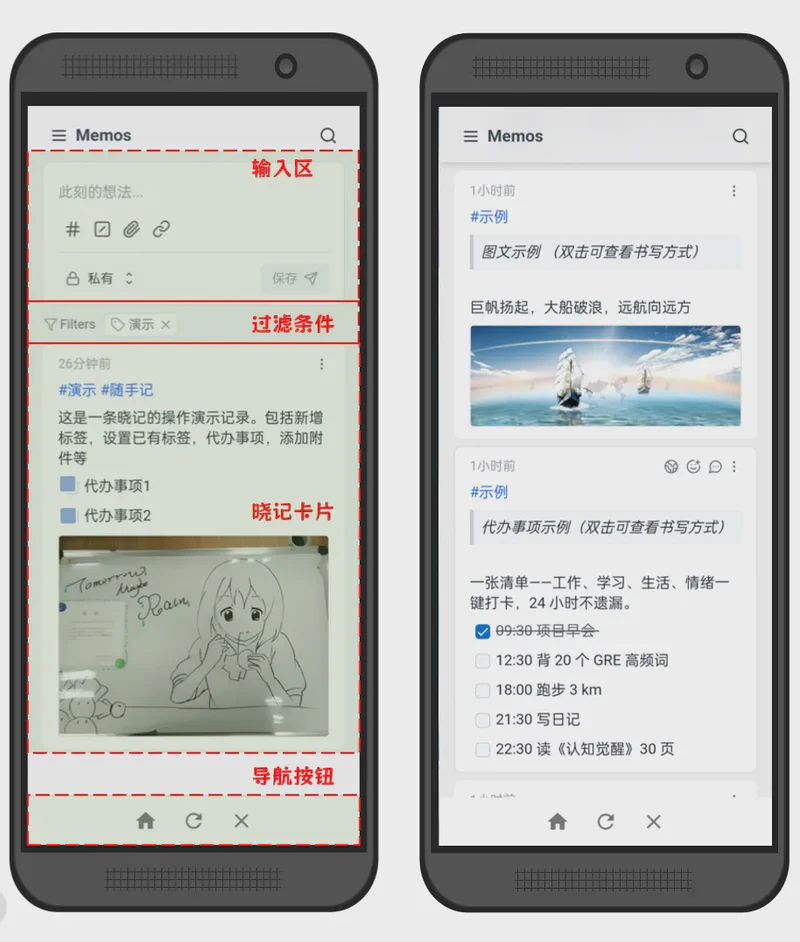
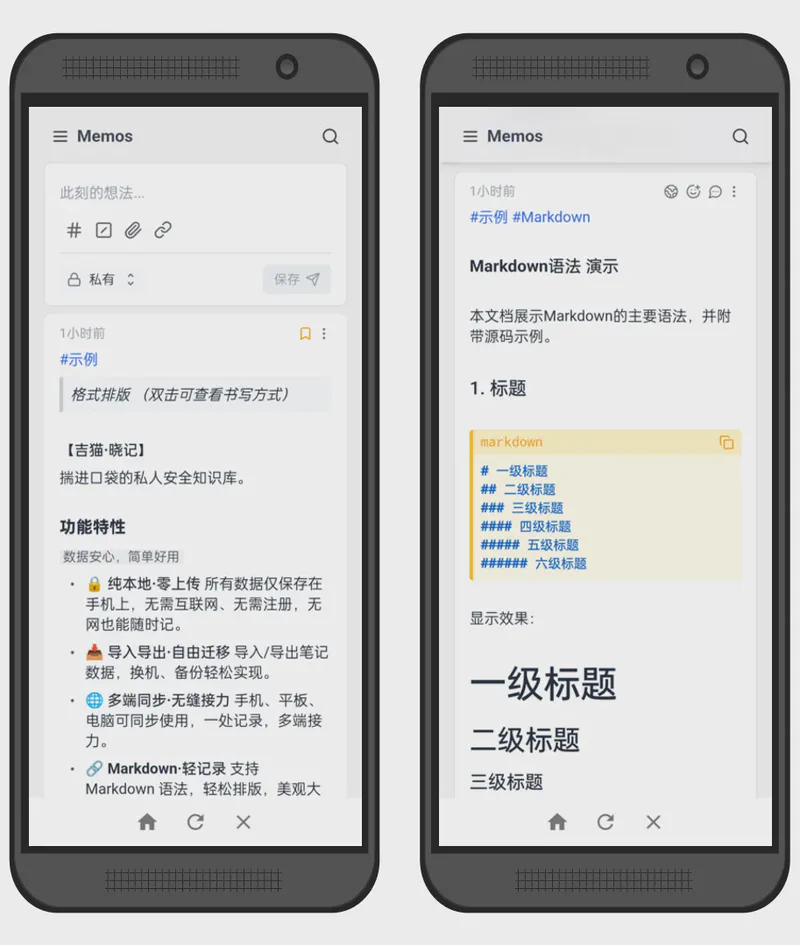
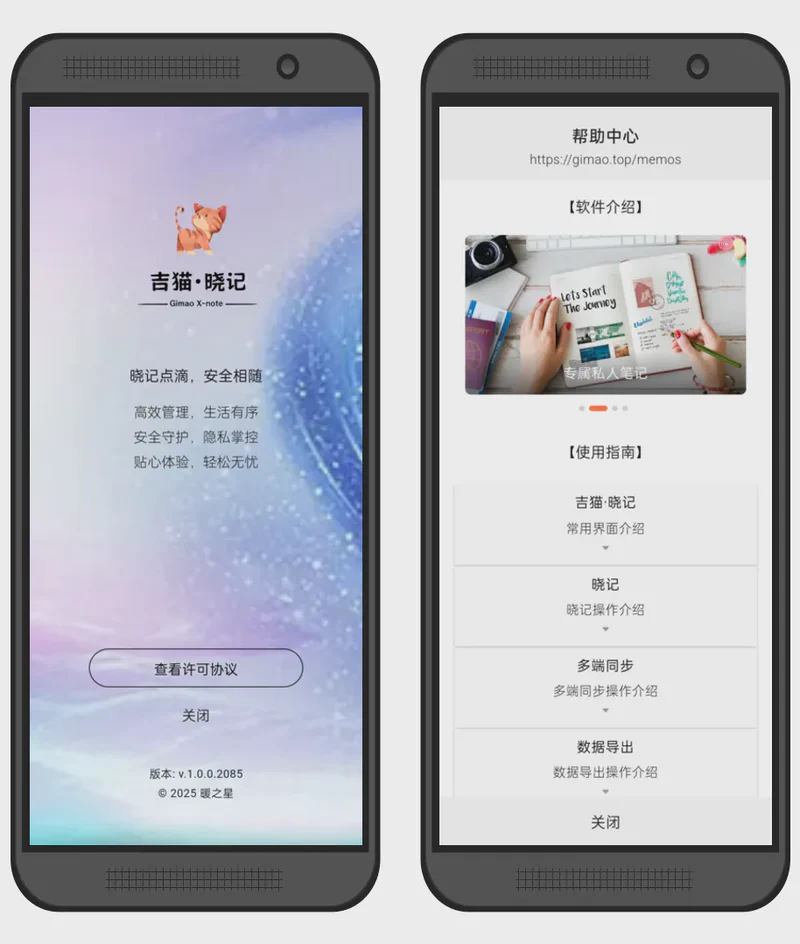
Screenshots
Key Features
Full Data Ownership
Data is stored only in your designated local library—offline accessible, open-source auditable, zero privacy data uploads.
Instant Saving
Plain text timeline input, auto-saved to local storage the moment you stop typing—never lose your inspiration.
Rich Markdown Support
Full syntax rendering + code highlighting—write, insert images and formulas in one click.
Media Integration
Natively support images, links and embedded content—drag-and-drop upload, what you see is what you get.
Customizable Interface
Customize brand, theme colors and UI elements—one-click switch, your interface your way.
Media Integration
Natively support images, links and embedded content—drag-and-drop upload, what you see is what you get.
Frequently Asked Questions
Answers to common questions about our products and services
There are multiple ways to connect your computer and phone:
Method 1: Connect both computer and phone to the same WiFi.
Method 2: Connect computer to the phone’s Personal Hotspot.
Method 3: Connect computer to the phone’s USB Tethering.
Method 4: Connect phone to computer via external network card.
…
Please troubleshoot with the following checklist:
1. Ensure computer and phone are on the same network.
2. Make sure Gimao Memo is in Power Saver Mode.
3. Disable proxy settings in your computer browser.
Android permissions cause Gimao Memo to be closed.
Solution 1:
Enable Power Saver Mode on your phone
[Cross-Device Sync] → [Power Saver Mode]
Solution 2:
Upgrade Gimao Memo app permissions
[Settings] → [Permission Application]
Step 1:
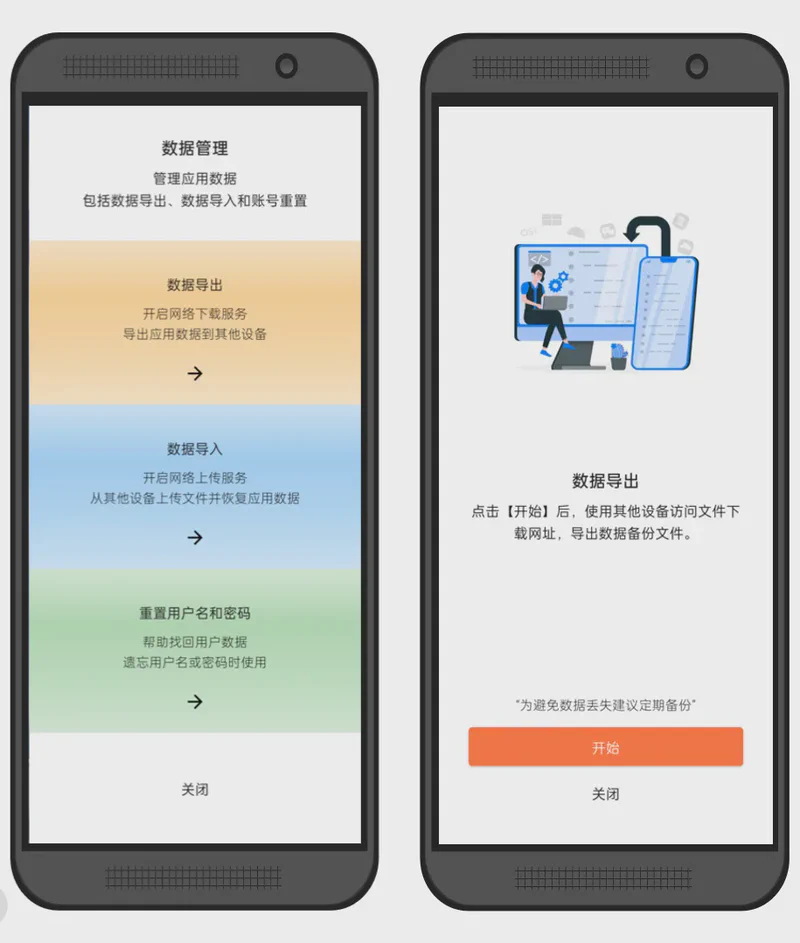
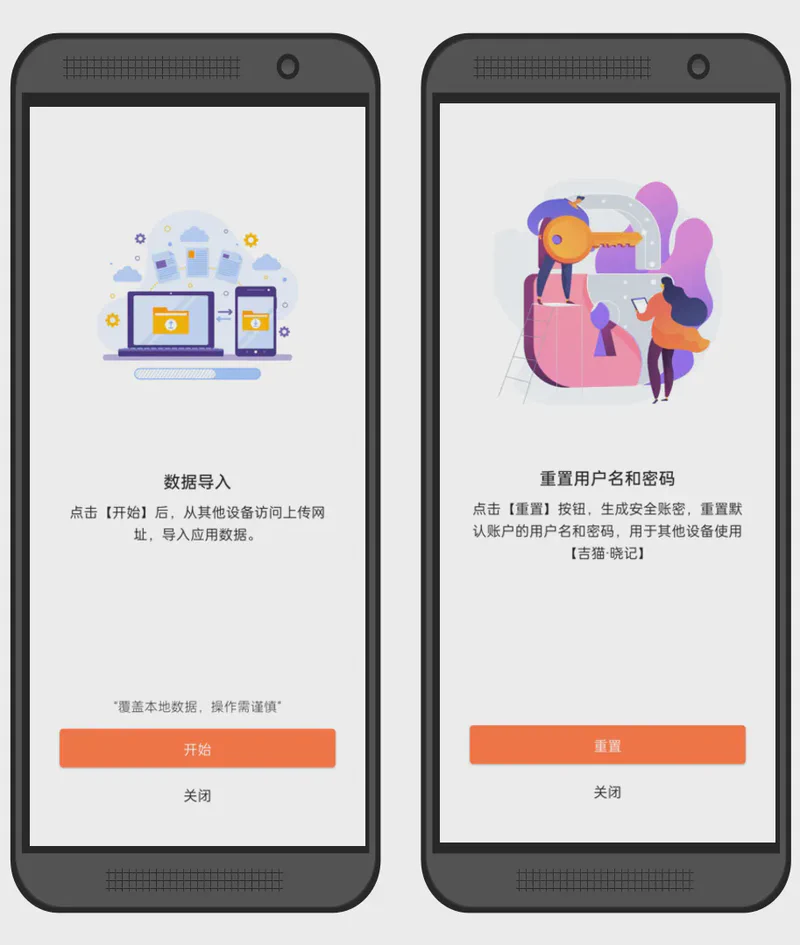
Export data from the old phone.
[Settings] → [Data Management] → [Export Data].
Step 2:
Import data to the new phone.
[Settings] → [Data Management] → [Import Data].
Reset the initial username and password.
[Settings] → [Data Management] → [Reset Username and Password]
Articles
Read related articles for more usage methods
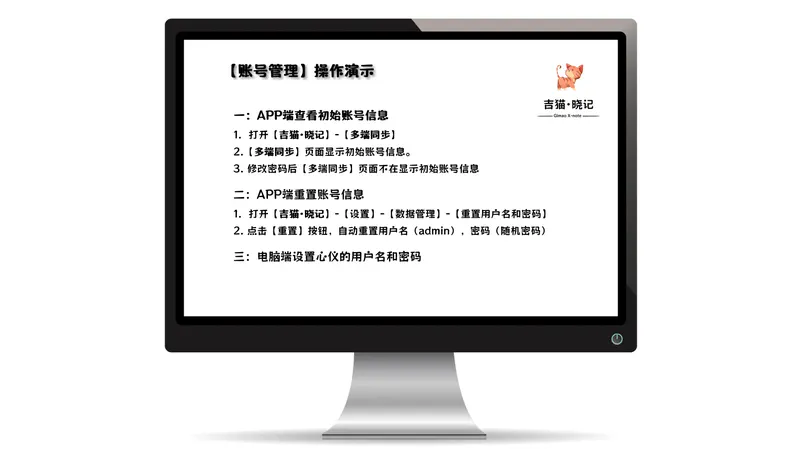
View Initial Account Information in the …
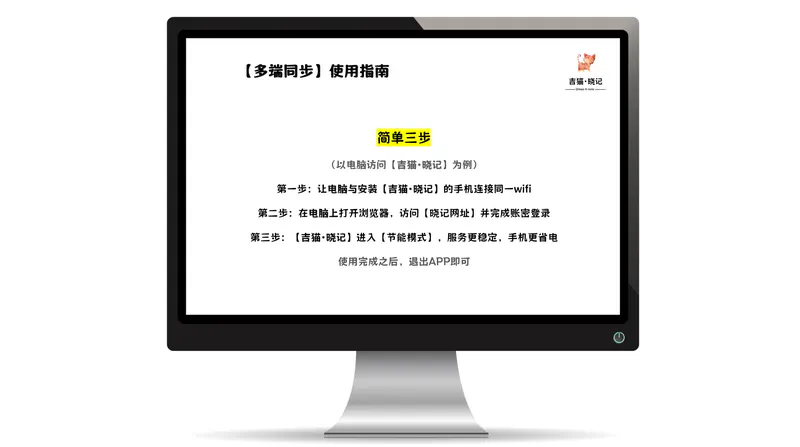
Step 1: Connect your computer and the …
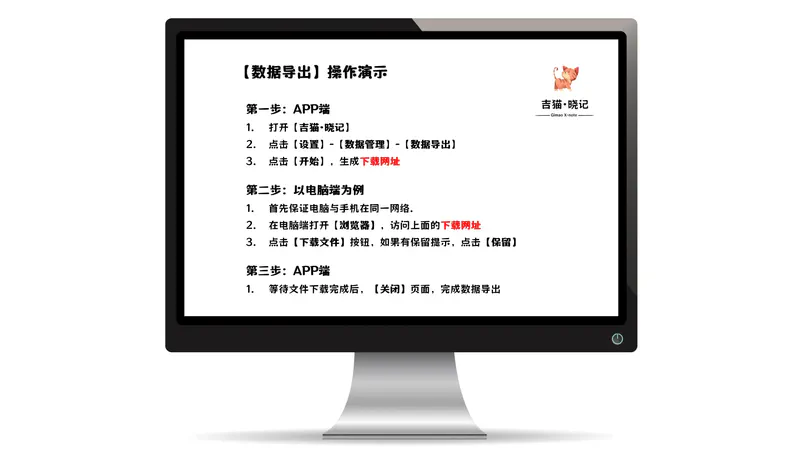
Step 1: Open Data Export on the Mobile …
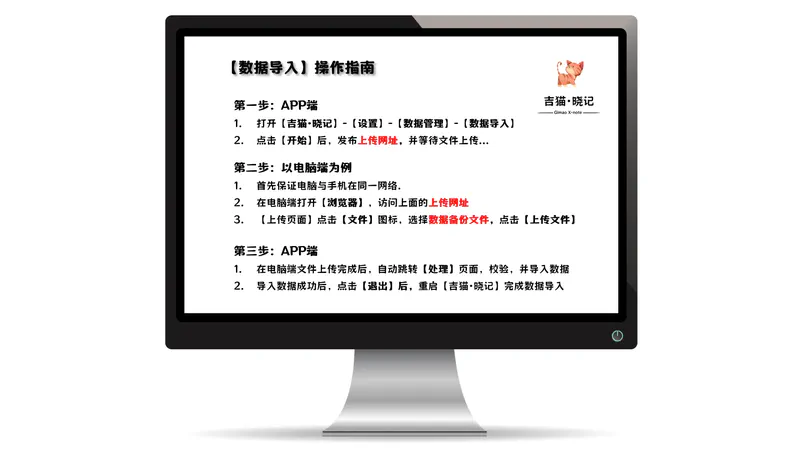
Step 1: Initiate Data Import on the …
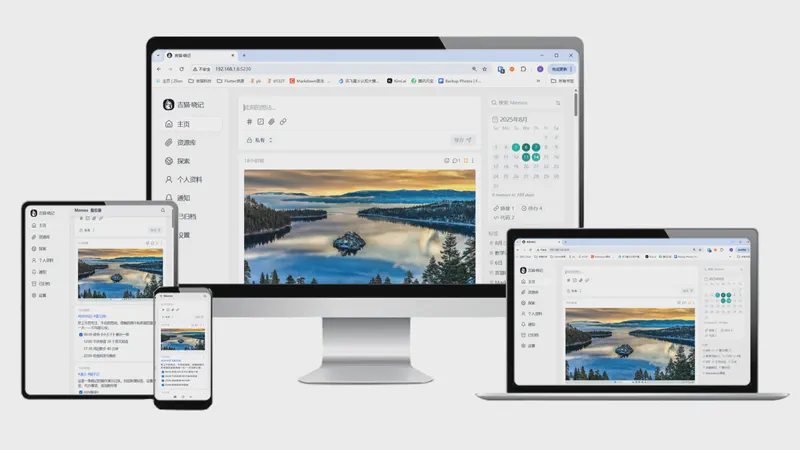
Step-by-step guide to Gimao Memo: add …

Last late autumn, Mr. Zhang, a …