
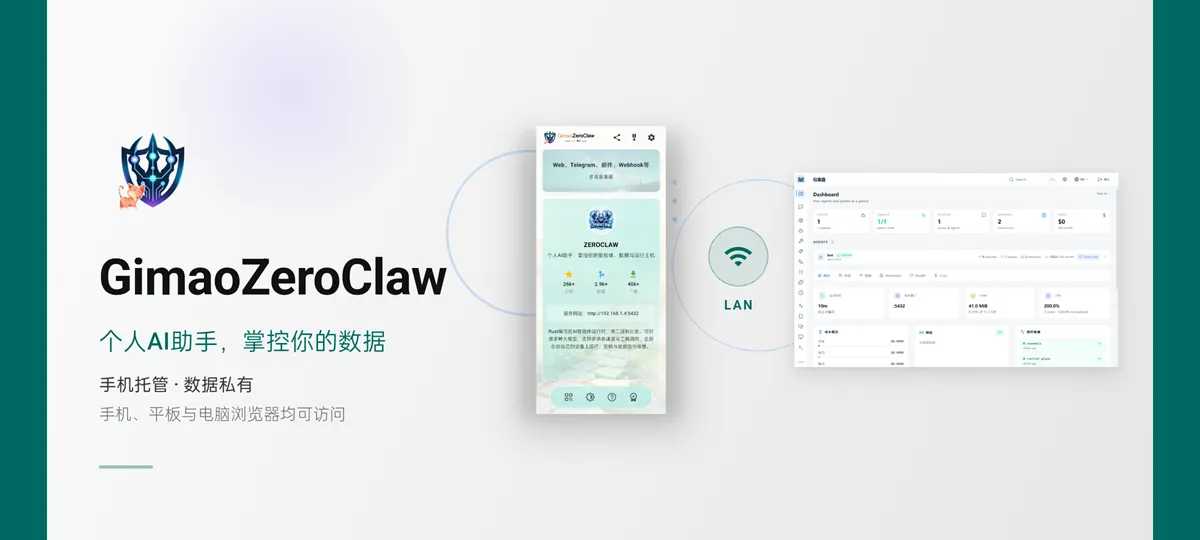
手机托管 · 数据私有
手机、平板与电脑浏览器均可访问
在你的手机上运行私有AI智能体服务。AI对话、记忆与配置数据完全私有,同一网络下的任何设备都能直接访问。
Use cases
The same app, used in very different ways. Here are the most typical ones.

Professionals
Work assistant · Meeting notes
Draft emails, summarise meetings and tidy up material with your own model API, so work content never leaves your device.

Students
Study help · Note tidy-up
Hand course material to a pocket AI, ask questions and turn notes into an outline, with the conversation staying on the device.
Content creators
Idea generation · First drafts
Run brainstorming, headlines and first drafts on your own model, with memory and data kept on this phone.

Developers
Model freedom · Tool calling
Plug in OpenAI, Claude, Ollama and twenty-odd other models, and let the agent call the shell, HTTP and your own MCP services.
Families
Home assistant · Reminders
One assistant for the household: look up recipes, set reminders and write notices, with anyone able to chat from a browser.
Key Features
From quick capture to reading it anywhere, these are the parts you will use every day.
私有AI智能体
属于你自己的个人AI助手
ZeroClaw个人AI智能体,你拥有智能体、数据以及运行它的设备。可自由配置AI工作流,自主完成任务。
多模型接入
兼容20+大模型服务商
支持OpenAI、Anthropic、Ollama等二十余种模型,本地模型与云端API均可接入,按需切换模型。

工具调用
浏览器、Shell、HTTP与MCP工具
AI智能体可调用丰富工具:网页浏览、HTTP请求、命令行执行、自定义MCP服务,自动完成复杂任务。

多消息渠道
Web、Telegram、邮件、Webhook等
多消息通道接入,可通过网页界面、Telegram、邮件、Webhook等多种方式和你的AI助手对话。
自托管 · 完全私有
你的AI助手,完全由你掌控
AI智能体服务直接运行在手机上,同一局域网内设备可访问。无云端、无第三方追踪,所有对话与记忆只保存在本机。基于 MIT/Apache-2.0 双许可证开源。
端侧服务
OnDevice
In plain terms, on-device means the software and your data run on hardware you own, not on a remote server. Gimao brings that to your phone: apps that used to need a rented server or a NAS now run directly on your Android device. The phone is the host, and everything from typing to saving happens on it — nothing is uploaded and no public IP is required.
No server bill
No VPS to rent and no NAS to buy — a spare phone is the host
No public IP
Reachable on your local network, with no ports exposed to the internet
No command line
Install and go: no Docker, no config files
Updates with the app
The service ships and upgrades together with the app
多端同步
Cross-device
The phone hosts, and any computer or tablet on the same network can open it in a browser. Capture on the phone, keep editing on the desktop — it is always the same content.
Direct over LAN
Same Wi-Fi, straight to the phone, no cloud in between
Browser as client
Desktops and tablets need no app, just the address
Always in sync
Change it once; other devices see it on refresh
USB tethering too
No Wi-Fi? Share the phone connection over USB
数据安全
Data privacy
Your data lives in a local database on the phone and never passes through our servers. No cloud account, no upload, no telemetry — and export gives you a complete backup you can take with you.
Local storage
Notes live in a database on the phone and work offline
No cloud account
Nothing to sign up for; the access password stays on the device
No telemetry
No analytics and no usage tracking
One-tap backup
Export a complete backup at any time and move devices freely
Frequently Asked Questions
有几种方式可以让两台设备处于同一网络:
- 将两者连接到同一个 Wi-Fi。
- 让电脑加入手机的个人热点。
- 通过 USB 网络共享手机连接。
- 使用外接网络适配器将手机与电脑相连。
连接成功后,在电脑浏览器中打开 App 内显示的 GimaoZeroclaw 地址即可。
请检查以下项目:
- 确认电脑和手机在同一网络。
- 确认 GimaoZeroclaw 服务正在运行。
- 关闭电脑浏览器中的代理设置。
- 确认 App 中显示的 IP 地址和端口与输入的一致。
- 如系统提示,允许 GimaoZeroclaw 通过手机防火墙。
Android 系统限制可能会在后台关闭 GimaoZeroclaw。
修复 1 – 低功耗模式: 手机 → 多设备访问 → 开启低功耗模式。
修复 2 – 授予更高权限: 设置 → 权限申请 → 允许所有必要权限。
修复 3 – 关闭电池优化: 系统设置 → 应用 → GimaoZeroclaw → 电池 → 不受限制。
默认情况下只有同一局域网内的设备才能访问,且需要输入账号密码登录。你可以:
- 设置高强度管理员密码。
- 配置工具执行权限,限制危险操作。
请勿将服务直接暴露到公网,避免未授权访问,保障智能体与隐私安全。
普通AI聊天App数据存放在厂商云端,受平台管控。 ZeroClaw是AI智能体运行时,在你的设备本地运行,你掌握全部数据与密钥,支持工具调用、多消息通道,可自主定义AI工作流。
所有对话记忆、智能体配置、凭证全部保存在手机本地存储。GimaoZeroclaw只是运行在手机本地的AI智能体服务,不会把你的数据上传到任何云端或者第三方服务器。 关闭服务或者断网,你的AI配置与记忆内容依然保留在手机中。
GimaoZeroclaw 默认面向同一局域网内的设备使用,即开即用。
如果需要公网远程访问,可以自行配置内网穿透或端口转发。请注意:暴露到公网会带来安全风险,建议仅在确有需要时开启,并使用强密码,严格限制工具执行权限。