GimaoMemos
吉猫·晓记
A self-hosted memo server in your pocket.
Run a full Memos server on your Android phone. Capture thoughts in Markdown, access from any device browser, and keep all notes private on your device — no cloud, no subscription. - Mobile-Host
Built based on memos open-source project, Respect original works with no code modifications
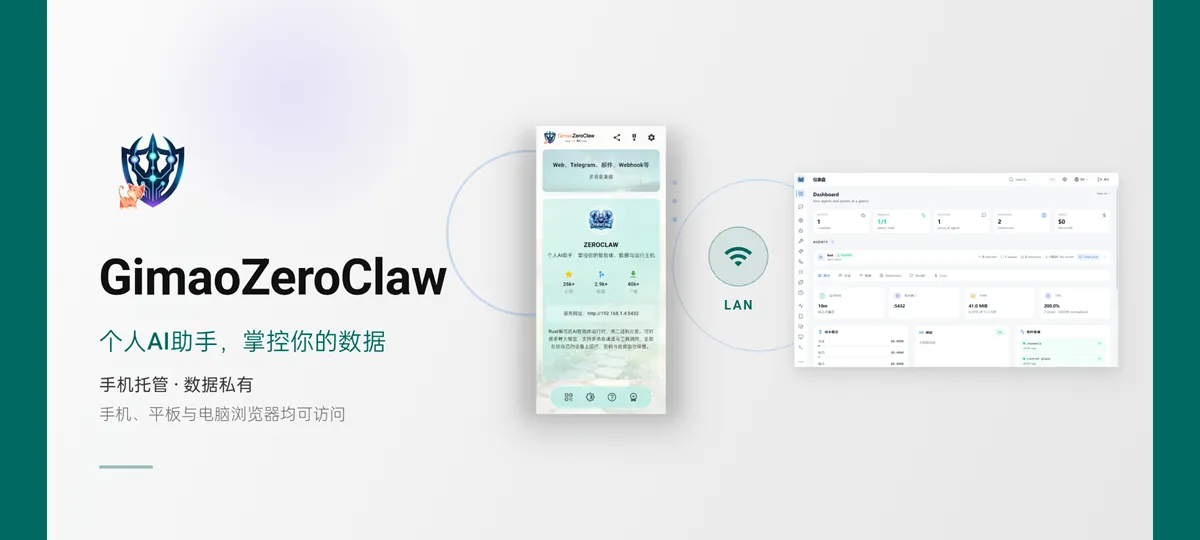
Self‑hosted Right On Your Phone
Access from phone, tablet & desktop browsers
No extra server or NAS required. Host your own Memos service locally on your phone. Keep all notes private and reach them from any device on the same Wi‑Fi network.
Use cases
The same app, used in very different ways. Here are the most typical ones.

Students
Lecture notes · Revision
Jot down key points in class, then turn scattered notes into a revision list with tags and to-dos. Your phone is the notebook — no need to wait until you are back at a desk.

Professionals
Meeting notes · Quick capture
Record conclusions and action items in a meeting, add a line on the commute, then keep editing in your desktop browser at your desk — everything stays in sync.
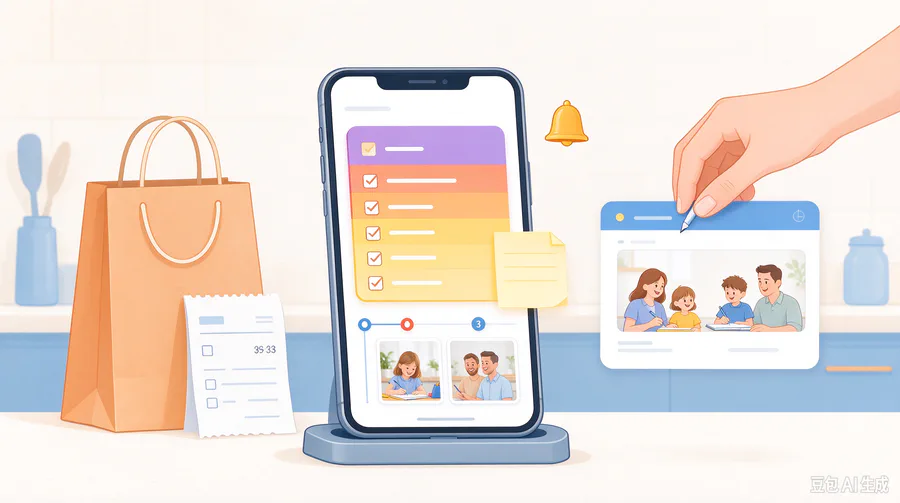
Families
Lists · Reminders · Shared notes
Keep household notes on a spare phone. Everyone on the same Wi-Fi can read them: shopping lists, bill reminders and the kids schedules.

Writers & freelancers
Research · Drafts
Ideas, quotes and half-finished drafts live on one timeline, with Markdown and tags. Export gives you plain text, so switching tools costs you nothing.
Key Features
From quick capture to reading it anywhere, these are the parts you will use every day.
Your Pocket Memo Server
No VPS, no domain
Gimao·Memos runs a complete self-hosted Memos server right on your phone. Install the app and your private note server is ready — zero configuration, zero server cost.
Private by Default
Your notes stay yours
Every memo lives on your device in a local database. No cloud sync, no third-party tracking, zero telemetry. Export anytime — you own every byte of your data.
Access from Any Device
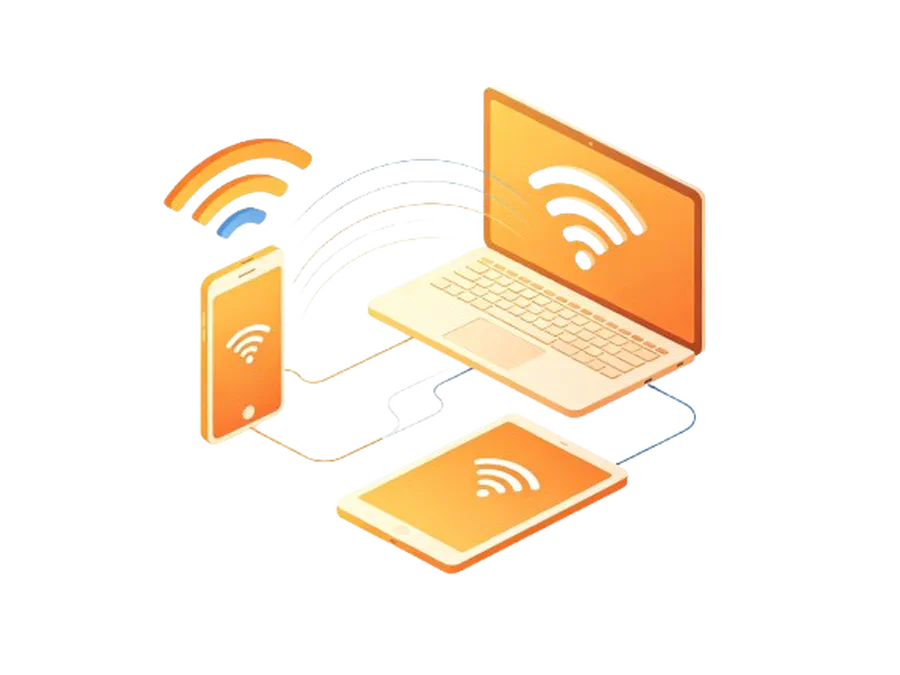
Phone hosts, browsers connect
Open the Gimao·Memos URL on any computer or tablet browser in the same network. Type on a laptop, capture on your phone, search from a tablet — all in real time.
Quick Capture in Markdown
Open, write, done
A timeline-first interface lets you jot ideas instantly — no folder, no title needed. Full Markdown support for code blocks, lists, tags and task lists, all stored as plain text.
端侧服务
OnDevice
In plain terms, on-device means the software and your data run on hardware you own, not on a remote server. Gimao brings that to your phone: apps that used to need a rented server or a NAS now run directly on your Android device. The phone is the host, and everything from typing to saving happens on it — nothing is uploaded and no public IP is required.
No server bill
No VPS to rent and no NAS to buy — a spare phone is the host
No public IP
Reachable on your local network, with no ports exposed to the internet
No command line
Install and go: no Docker, no config files
Updates with the app
The service ships and upgrades together with the app
多端同步
Cross-device
The phone hosts, and any computer or tablet on the same network can open it in a browser. Capture on the phone, keep editing on the desktop — it is always the same content.
Direct over LAN
Same Wi-Fi, straight to the phone, no cloud in between
Browser as client
Desktops and tablets need no app, just the address
Always in sync
Change it once; other devices see it on refresh
USB tethering too
No Wi-Fi? Share the phone connection over USB
数据安全
Data privacy
Your data lives in a local database on the phone and never passes through our servers. No cloud account, no upload, no telemetry — and export gives you a complete backup you can take with you.
Local storage
Notes live in a database on the phone and work offline
No cloud account
Nothing to sign up for; the access password stays on the device
No telemetry
No analytics and no usage tracking
One-tap backup
Export a complete backup at any time and move devices freely
Frequently Asked Questions
There are several ways to get both devices on the same network:
- Connect both to the same Wi-Fi.
- Let your computer join the phone’s Personal Hotspot.
- Share the phone’s connection via USB tethering.
- Use an external network adapter to link the phone to the computer.
Once connected, open the Memos URL shown in Gimao·Memos on your computer’s browser.
Check the following:
- Make sure the computer and phone are on the same network.
- Verify that Gimao·Memos is in Low-power Mode (server running).
- Turn off any proxy settings in the computer’s browser.
- Confirm the IP address and port shown in the app match what you typed.
- Allow the app through your phone’s firewall if prompted.
Android system restrictions may be closing Gimao·Memos in the background.
Fix 1 – Low-power Mode: Phone → Multi-device Sync → Enable Low-power Mode.
Fix 2 – Grant higher privileges: Settings → Permission Request → Allow all required permissions.
Fix 3 – Disable battery optimization: System Settings → Apps → Gimao·Memos → Battery → Unrestricted.
Step 1 – Export on the old phone: Settings → Data Management → Export Data (downloads a full backup including all memos, tags and attachments).
Step 2 – Import on the new phone: Settings → Data Management → Import Data → select the backup file.
All memos, tags, resources and user settings will be restored.
Learn more: target="_blank"
Gimao·Memos supports standard Markdown including:
- Headings (# ## ###)
- Bold (text) and italic (text)
- Bullet and numbered lists
- Code blocks (```) and inline code (
code) - Links
text
and images - Task lists (- [ ] and - [x])
- Blockquotes (> text)
All content is stored as plain Markdown for portability.
Learn more: target="_blank"
Tags help you organize and filter memos:
- Type # followed by a word anywhere in your memo (e.g. #ideas, #work).
- Tags are automatically detected and clickable.
- Tap a tag to filter the timeline to only memos with that tag.
- Use the sidebar to browse all tags and their memo counts.
Tags support nesting with slashes, e.g. #work/meeting.
Use the search bar at the top of the timeline:
- Type keywords to search memo content.
- Filter by tag using #tagname.
- Combine filters: #work deadline
- Search is case-insensitive and runs locally on your device.
Results update instantly as you type.
Learn more: target="_blank"
Your data is stored locally on your phone in a SQLite database by default — nothing is uploaded to any cloud.
To export: Settings → Data Management → Export Data
This creates a full backup file you can save externally or import into another Memos instance. Memos also supports MySQL and PostgreSQL for larger deployments.
Learn more: target="_blank"
Articles
Read related articles for more usage methods
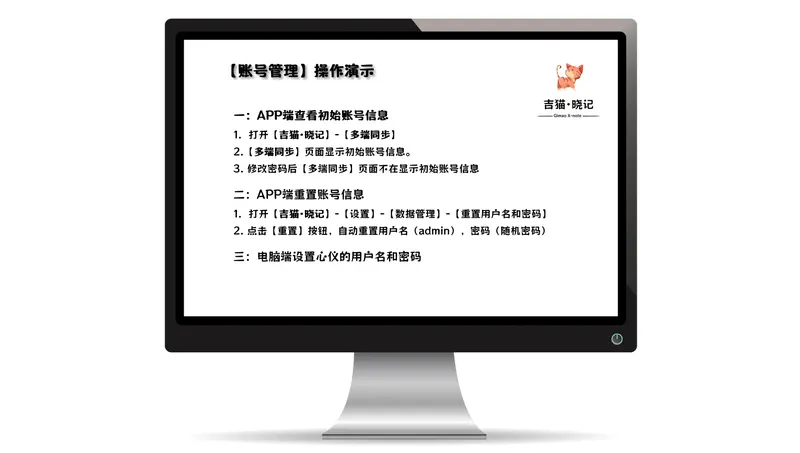
View Initial Account Information in the …
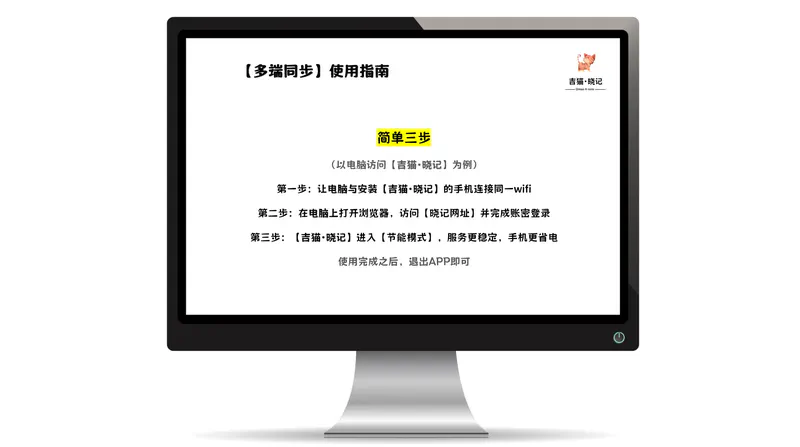
Step 1: Connect your computer and the …
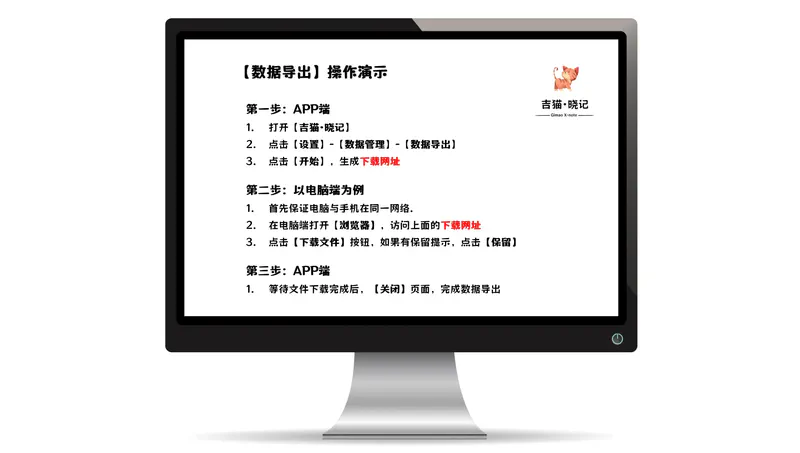
Step 1: Open Data Export on the Mobile …
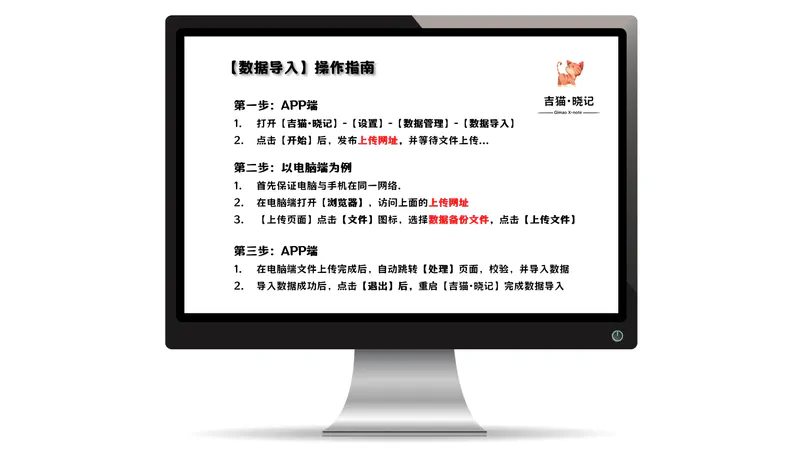
Step 1: Initiate Data Import on the …
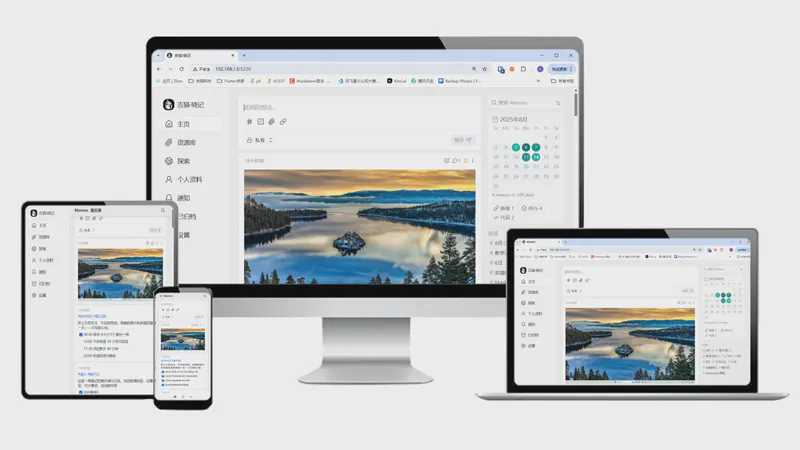
Step-by-step guide to Gimao Memo: add …

Last late autumn, Mr. Zhang, a …