Gimao Kanban
Mobile-Hosted
Gimao Kanban
Intuitive Kanban View
Kanboard Android version helps individuals and teams focus on workflows and drive continuous improvement—ideal for daily life management and work task tracking.
Get It Now
Experience more convenient services and enjoy premium features anytime, anywhere.

Screenshots
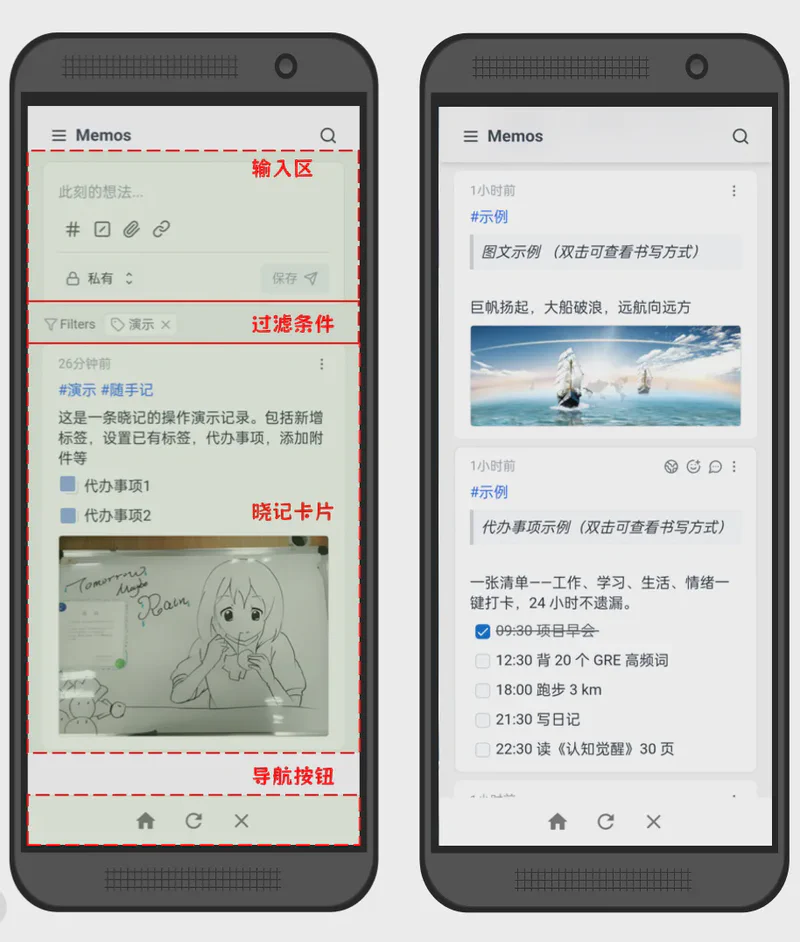
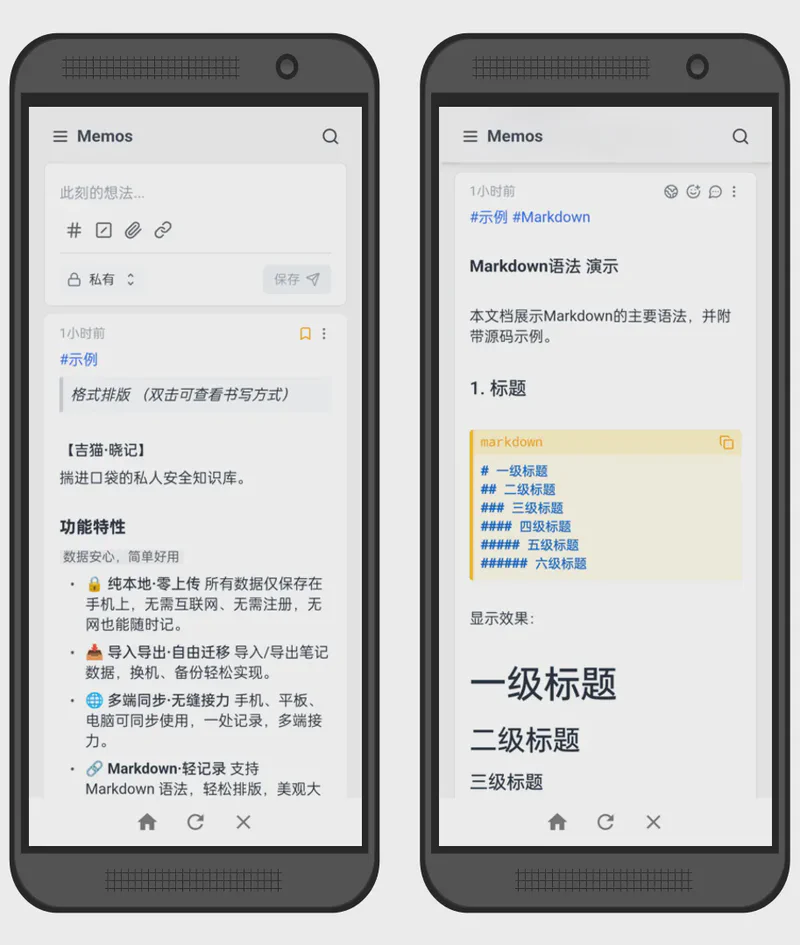
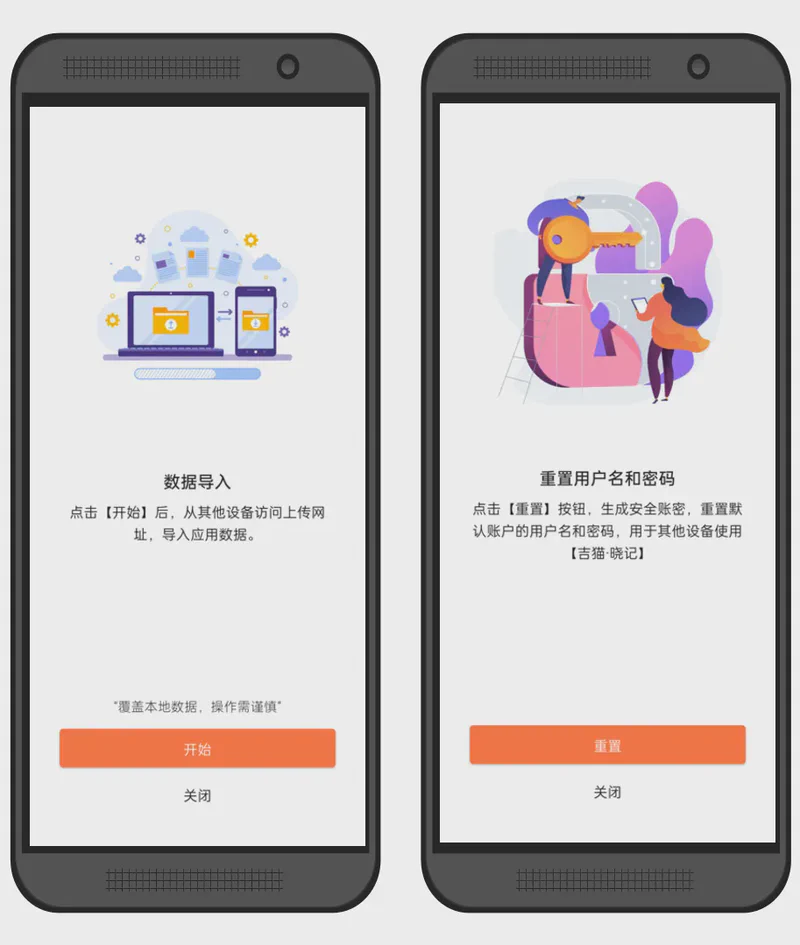
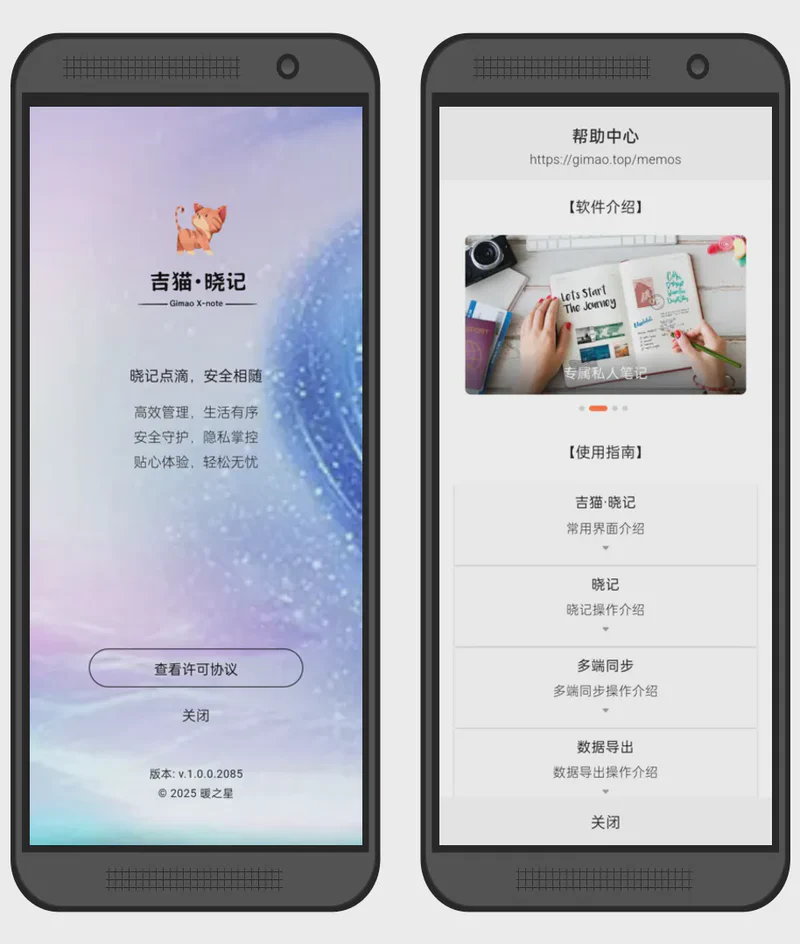
Key Features
Full Data Ownership
Data is stored only in your designated local library—offline accessible, open-source auditable, and zero privacy data uploads.
Minimalist Kanban View
Drag-and-drop task cards with a clear "To Do - In Progress - Done" workflow; unlimited columns + custom workflows, all operations completed on a single page.
Detailed Task Management
Complete with subtasks, Markdown descriptions, time estimates, attachments, priority levels, comments, and activity logs.
Automated Workflows
Auto-assign tasks, change colors, and move columns based on event triggers—reduce repetitive manual operations.
Time Tracking & Analysis
Built-in timer for time recording, one-click generation of burn-down charts, Gantt charts, and cycle reports for continuous improvement.
Advanced Search & Dynamic Filters
Save custom filters, support instant filtering by member, tag, deadline, color, and more.
Frequently Asked Questions
Answers to common questions about our products and services
There are multiple ways to connect your computer and phone:<brMethod 1: Connect both computer and phone to the same WiFi.
Method 2: Connect computer to the phone’s Personal Hotspot.
Method 3: Connect computer to the phone’s USB Tethering.
Method 4: Connect phone to computer via external network card.
…
Please troubleshoot with the following checklist:
1. Ensure computer and phone are on the same network.
2. Make sure the app is in Power Saver Mode.
3. Disable proxy settings in your computer browser.
Android permissions cause the app to be closed.
Solution 1:
Enable Power Saver Mode on your phone
[Cross-Device Sync] → [Power Saver Mode]
Solution 2:
Upgrade app permissions
[Settings] → [Permission Application]
Step 1:
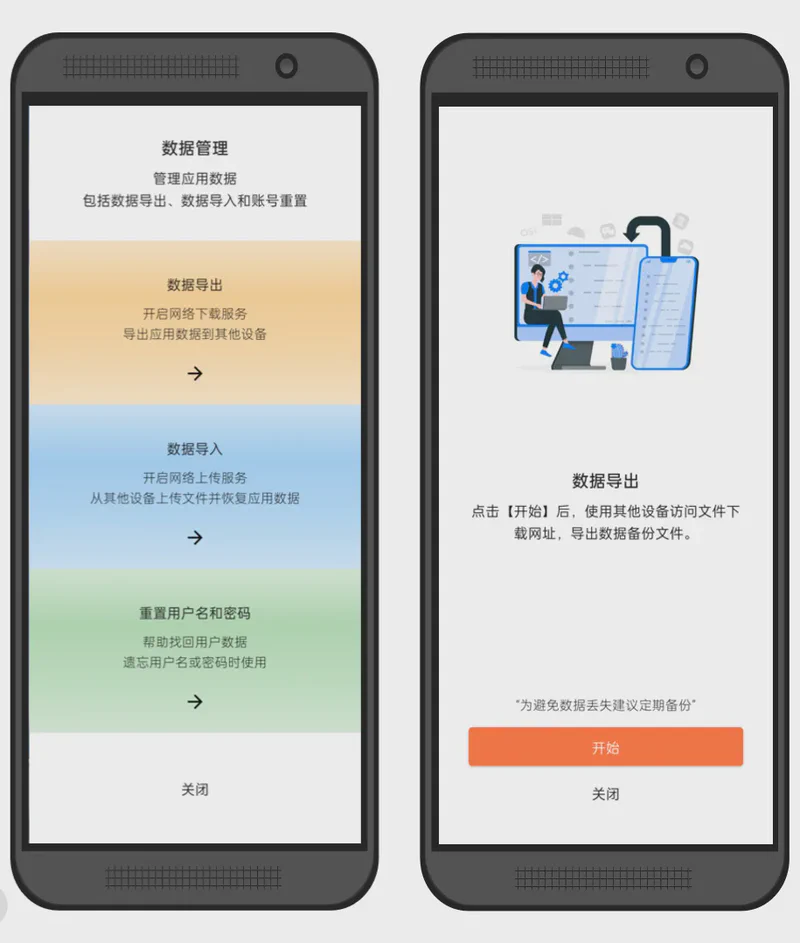
Export data from the old phone.
[Settings] → [Data Management] → [Export Data].
Step 2:
Import data to the new phone.
[Settings] → [Data Management] → [Import Data].
Articles
Read related articles for more usage methods
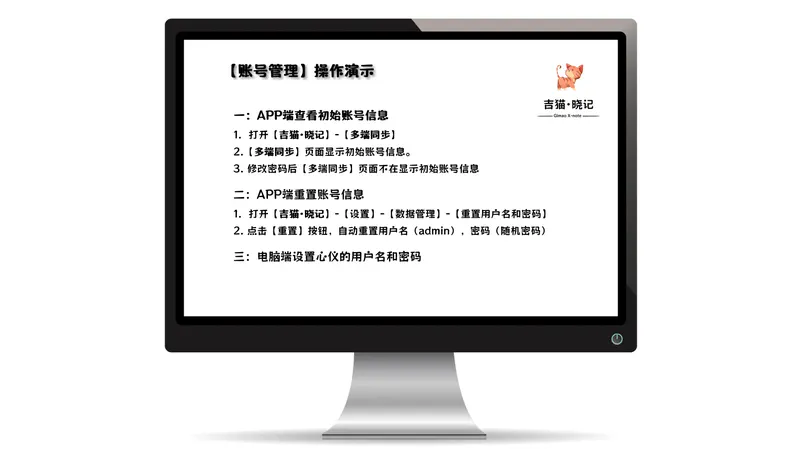
View Initial Account Information in the …
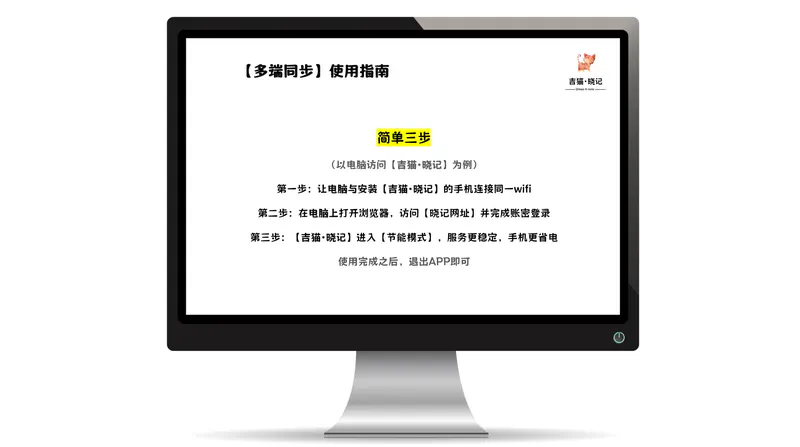
Step 1: Connect your computer and the …
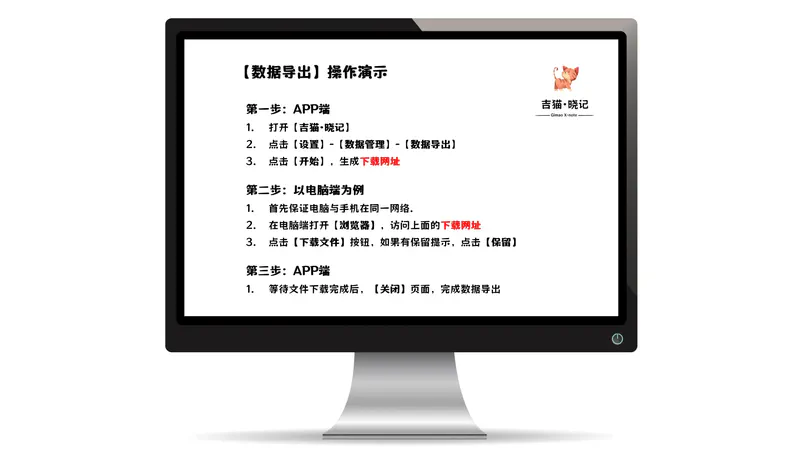
Step 1: Open Data Export on the Mobile …
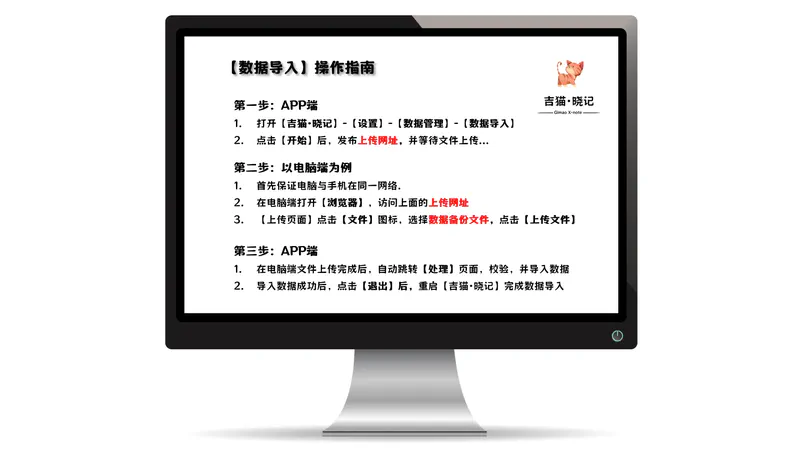
Step 1: Initiate Data Import on the …
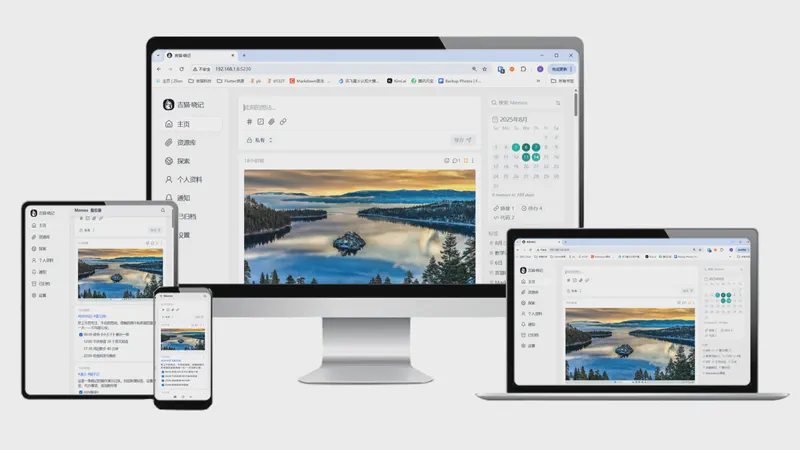
Step-by-step guide to Gimao Memo: add …

Last late autumn, Mr. Zhang, a …