GimaoFileBrowser
吉猫·云盘
Your Private Cloud, Right Inside Your LAN
Build your self‑hosted private cloud. Manage, preview and share files anytime from phones, tablets and computers — Mobile‑Host
Built upon the open‑source File Browser project (Apache‑2.0 License). Original source unchanged and fully respected
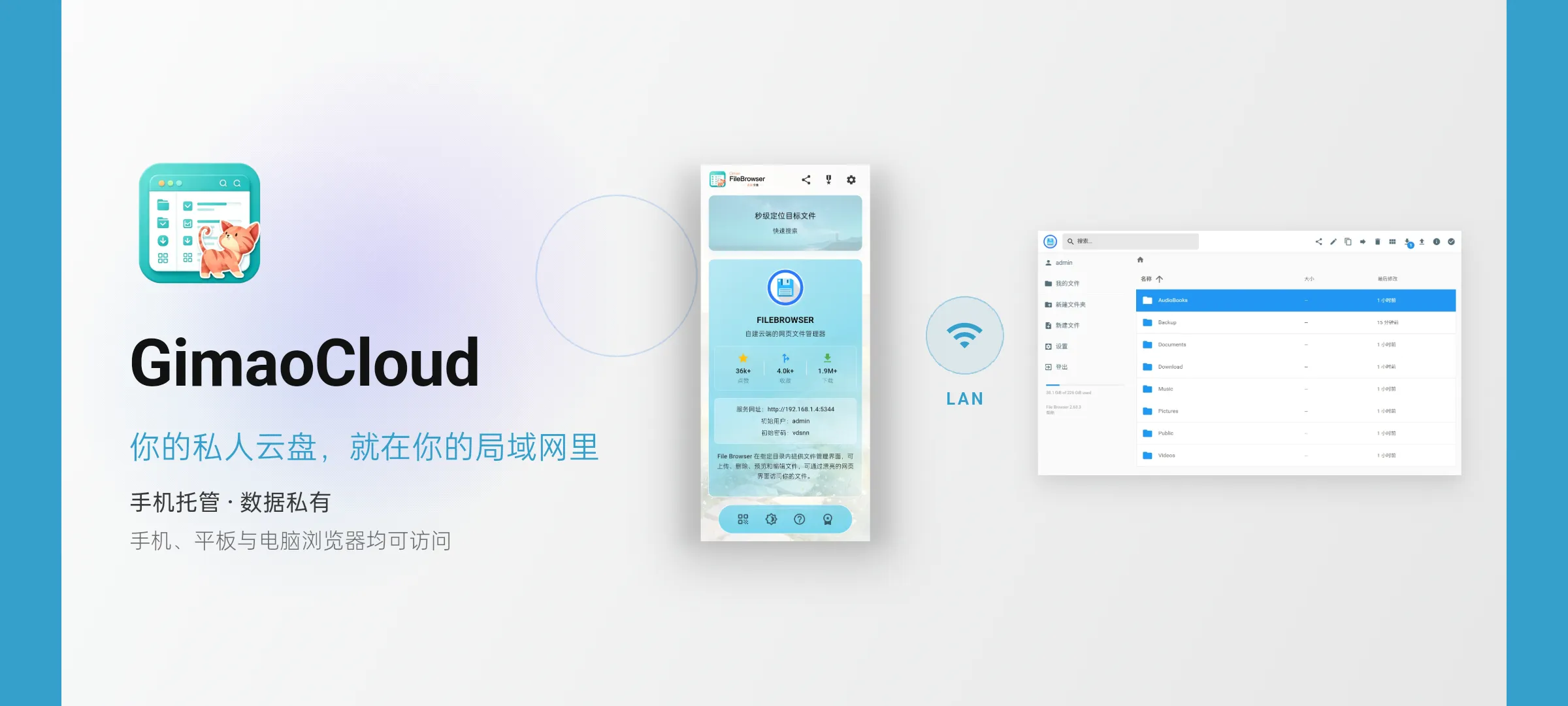
Phone‑Hosted · Fully Private
Accessible via phone, tablet and desktop browsers
Run your own file server directly on your smartphone. Your data stays local. Any device on the same network can connect instantly.
Use cases
The same app, used in very different ways. Here are the most typical ones.
Professionals
Team files · Quick sharing
Put proposals, contracts and assets in a shared folder on the phone and hand out a time-limited link, which beats email attachments.
Families
Photos & video · Shared library
Keep family photos and films on the phone and open them from the TV, tablet or laptop on the same network.
Students
Course files · Assignment hand-ins
Keep slides, papers and assignments on the phone and download them from a laptop browser, without chat-app shuffling.
Content creators
Footage · Delivery
Organise footage and finished cuts by project, and let clients preview and download in a browser without a third-party cloud drive.
Small teams
Internal sharing · Access control
Give each colleague an account and its own access scope, with files kept on a spare phone instead of a public cloud.
Key Features
From quick capture to reading it anywhere, these are the parts you will use every day.

Complete File Manager
Upload, download, delete and rename with ease
Manage files right in your browser: upload by drag‑and‑drop, batch operations, folder navigation, rename, move and delete. Everything works like a local file explorer.
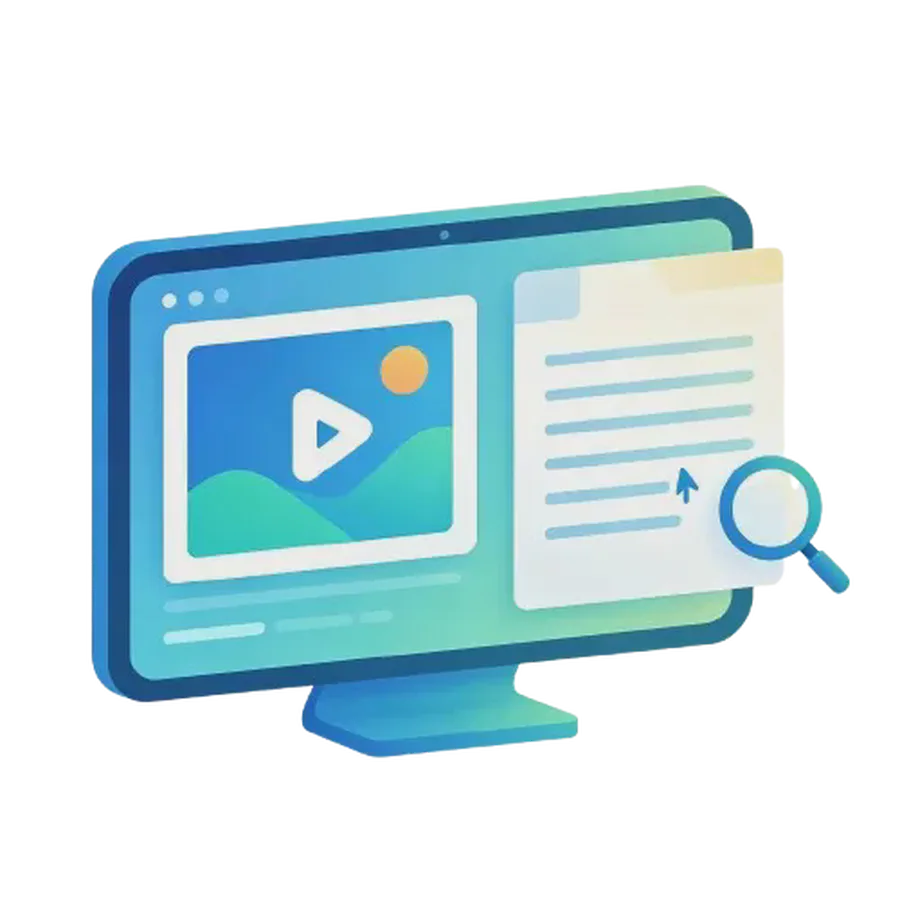
In‑Browser Preview & Editing
View images, videos, audio and text on the spot
Open photos, movies, music and text files without downloading them. Edit plain text documents directly and inspect thumbnails and metadata smoothly.

Instant File Search
Locate your files in milliseconds
Search across folders by filename and apply filters. Find what you need quickly even when your library grows large.
Secure File Sharing
Generate temporary or permanent public links
Create shareable links for files or folders, set expiry dates and access permissions. Share safely with selected people.

Multi‑User & Permission Control
Decide who sees and modifies which folders
Add multiple user accounts and assign isolated directories and read/write rights. Ideal for family or small‑team collaboration with clear boundaries.
Archive Handling
Browse and extract archives online
Peek inside compressed archives without downloading the whole package. Create and unpack common archive formats for simpler bulk transfers.
Self‑Hosted & Fully Yours
You keep full ownership of your data
The file server runs locally on your phone and serves devices on your LAN. No cloud uploads, no third‑party tracking. Powered by open‑source software under the Apache‑2.0 license.
端侧服务
OnDevice
In plain terms, on-device means the software and your data run on hardware you own, not on a remote server. Gimao brings that to your phone: apps that used to need a rented server or a NAS now run directly on your Android device. The phone is the host, and everything from typing to saving happens on it — nothing is uploaded and no public IP is required.
No server bill
No VPS to rent and no NAS to buy — a spare phone is the host
No public IP
Reachable on your local network, with no ports exposed to the internet
No command line
Install and go: no Docker, no config files
Updates with the app
The service ships and upgrades together with the app
多端同步
Cross-device
The phone hosts, and any computer or tablet on the same network can open it in a browser. Capture on the phone, keep editing on the desktop — it is always the same content.
Direct over LAN
Same Wi-Fi, straight to the phone, no cloud in between
Browser as client
Desktops and tablets need no app, just the address
Always in sync
Change it once; other devices see it on refresh
USB tethering too
No Wi-Fi? Share the phone connection over USB
数据安全
Data privacy
Your data lives in a local database on the phone and never passes through our servers. No cloud account, no upload, no telemetry — and export gives you a complete backup you can take with you.
Local storage
Notes live in a database on the phone and work offline
No cloud account
Nothing to sign up for; the access password stays on the device
No telemetry
No analytics and no usage tracking
One-tap backup
Export a complete backup at any time and move devices freely
Frequently Asked Questions
You can place both devices on one local network in several ways:
- Join the same Wi‑Fi network.
- Connect your PC to your phone’s mobile hotspot.
- Use USB tethering from your phone.
- Attach an external network adapter between phone and PC.
Once connected, open the displayed File Browser address in your desktop browser.
Check these points one by one:
- Confirm both devices share the same local network.
- Verify GimaoFileBrowser is active in low‑power service mode.
- Disable browser proxy settings on your computer.
- Double‑check the IP address and port shown inside the app.
- Allow GimaoFileBrowser through Android firewall prompts if requested.
Android may terminate GimaoFileBrowser in the background to save battery.
Fix 1 – Low‑power service: Open Multi‑Device Access and enable low‑power mode.
Fix 2 – Grant required permissions: Go to Settings → Permission Manager and allow all requested permissions.
Fix 3 – Remove battery restrictions: System Settings → Apps → GimaoFileBrowser → Battery → Unrestricted.
By default access is limited to devices inside your LAN and requires login credentials. You can improve security further:
- Create separate user accounts with strong passwords.
- Restrict each user to specific folders and read/write rules.
- Set expiration and permissions for public share links.
Avoid exposing the service directly to the public internet.
Yes. GimaoFileBrowser supports multiple accounts with isolated folders and custom read‑only or read‑write permissions:
- Admin account: full system control.
- Regular users: limited to assigned directories.
Several devices can stay connected and work concurrently.
These common formats open directly without downloading:
‑ Images: jpg, png, gif, webp and more ‑ Videos: mp4, webm and other mainstream formats ‑ Audio: mp3 and supported media files ‑ Text: txt, md, source code files with live editing
Other formats can be downloaded and opened locally.
Step 1 – Export backup on old device: Settings → Data Management → Export Backup. This saves files, folders and server configuration as one complete archive.
Step 2 – Restore backup on new device: Settings → Data Management → Import Backup and select the exported archive.
All stored files and service settings will be recovered.
All files stay on your phone’s local storage. GimaoFileBrowser is a local file server only. It never transmits your files to remote cloud platforms or third‑party services.
Your documents remain on‑device even after you stop the service or disconnect internet.
GimaoFileBrowser is designed primarily for local area network use out of the box.
Remote public access is possible with self‑configured port forwarding or NAT traversal tools. Be aware that public exposure raises security risks. Use strong passwords if you choose to enable remote access.